Add Data in DataGridView Rows Without Database
In this article, I will show you how to add data in datagridview rows without database, let’s follow code below
Step 1:
Design your windows form application like this (see below image)
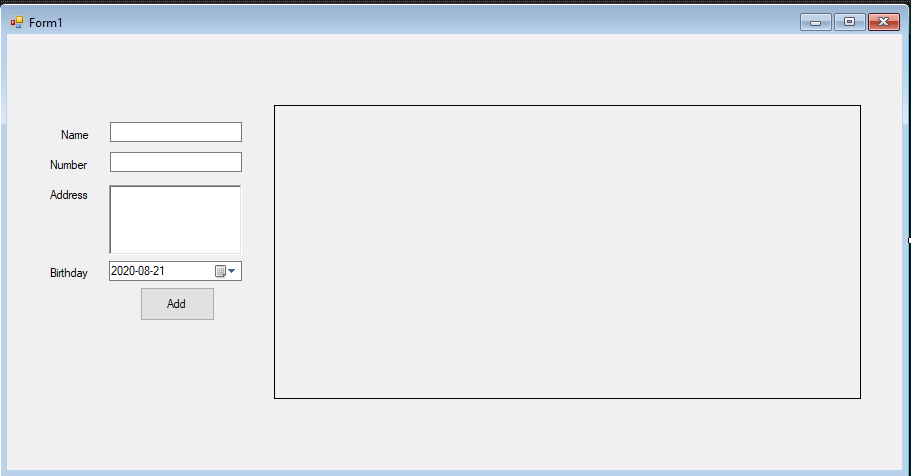
Form Components:
- Dtuser
- Txtname
- Txtnumber
- Txtaddress
- Txtbirthday
- Btnadd
Step 3:
Add Columns to DataGridview using this code below
using System;
using System.Collections.Generic;
using System.ComponentModel;
using System.Data;
using System.Drawing;
using System.Linq;
using System.Text;
using System.Threading.Tasks;
using System.Windows.Forms;

namespace adddataindatagridviewrows
{
    public partial class Form1 : Form
    {
        DataTable t = new DataTable();
        public Form1()
        {
            InitializeComponent();
        }
        private void Form1_Load(object sender, EventArgs e)
        {
            showindatagridview();
        }
        public void showindatagridview()
        {
            t.Columns.Add("NAME", typeof(string));
            t.Columns.Add("NUMBER", typeof(string));
            t.Columns.Add("ADDRESS", typeof(string));
            t.Columns.Add("BIRTHDAY", typeof(string));
            dtgridview.DataSource = t;
        }
    }
}
Code Explanation:
This code explain, how to add columns in DataGridView Manually.
Step 4:
Code for adding data in DataGridView rows btnadd click events:
using System;
using System.Collections.Generic;
using System.ComponentModel;
using System.Data;
using System.Drawing;
using System.Linq;
using System.Text;
using System.Threading.Tasks;
using System.Windows.Forms;

namespace adddataindatagridviewrows
{
    public partial class Form1 : Form
    {
        public Form1()
        {
            InitializeComponent();
        }
        private void btnadd_Click(object sender, EventArgs e)
        {
            t.Rows.Add(txtname.Text, txtnumber.Text, txtaddress.Text, txtdate.Text);
        }
    }
}
Code Explanation:
This code explain, how to add data in DataGridView rows manually.
Results:
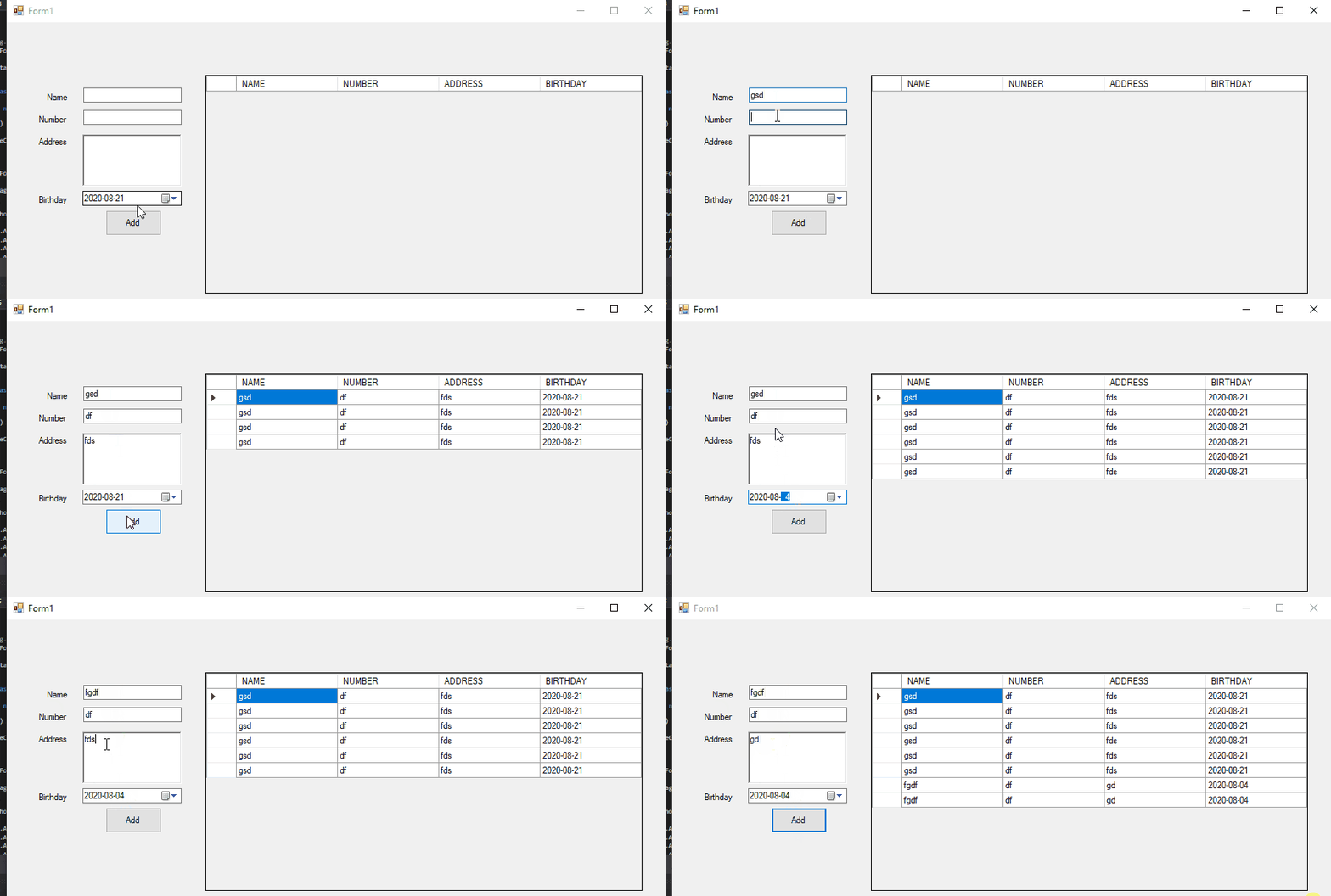
Add Data in DataGridView Rows Without Database – Free Download Source code
Mark Jaylo
YTC: https://www.youtube.com/c/MarkTheProgrammer
You may visit our facebook page for more information, inquiries and comments.
Hire our team to do the project.